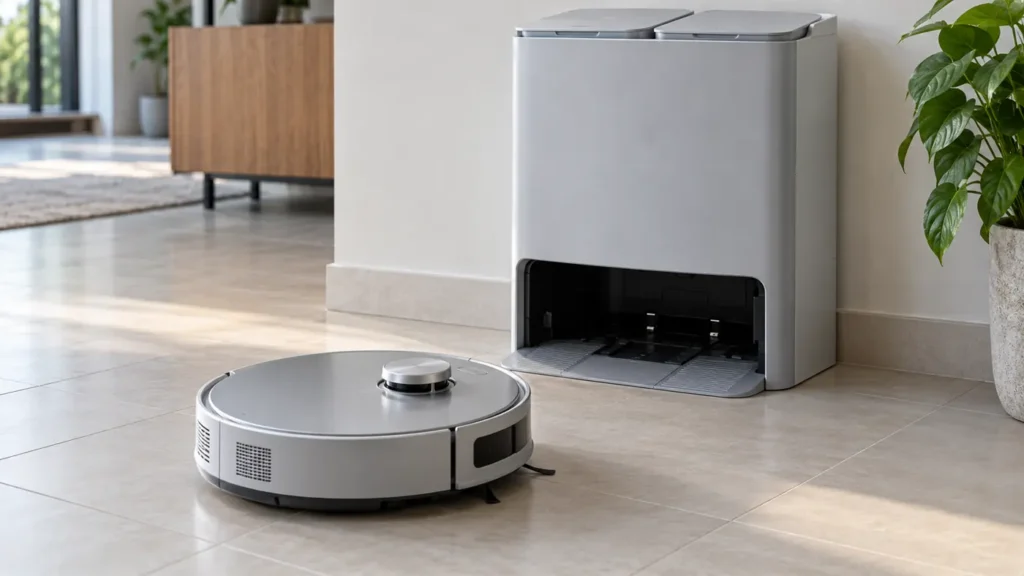
Begin with the quick checks. Stop if a step requires tools or experience you do not have.
If your Ecovacs T20 OMNI won’t dock, watch where the return attempt fails. A robot searching in another room needs different checks from one that reaches the station but slips or stops at the entrance. If it enters successfully but does not charge, use the separate charging guide.
Start here: confirm the station has power, clear the route and observe one return attempt. Then compare it with a return requested directly in front of the station. This helps distinguish a route problem from trouble entering the base.
Choose the docking path
| Observed problem | Next check |
|---|---|
| Robot searches but never reaches the station | Check station location, power and the route. |
| It stops at a closed doorway | Open the route to the station and retest. |
| It reaches the base but cannot enter | Inspect the tray, wheels and mop-plate installation. |
| It docks but does not charge | Continue with charging and contact checks. |
| Return button is unavailable during pad cleaning | Wait for the station task to finish. |
| It fails only when returning from farther away | Compare saved map and access from that room. |
1. Check power and the station’s location
Ecovacs recommends reconnecting station power and returning the station to its original position if it was moved. It also specifies flat ground and a clear surrounding area. Look at what changed since the last successful return before choosing a new permanent location.
A cable that looks connected may not be fully seated. Check the accessible connection as instructed, and keep loose cables away from the entrance. If the station was moved for floor cleaning, restore the previous setup and compare. Moving it to several different corners during troubleshooting makes the results harder to interpret.
2. Follow the whole return route
Check the path from the robot’s current room to the station. Ecovacs specifically includes a closed door among possible obstructions. Pick up small objects and remove anything blocking the entrance. Leave necessary doors open throughout the comparison task.
Record the point where the robot stops or turns away. If it reaches the same doorway repeatedly, test access there before altering the station. If it remains in a distant room, compare the displayed map and selected restrictions. Use the T20 OMNI mapping guide when the saved layout itself looks wrong.
3. Try a return from directly in front
Ecovacs recommends placing the robot in front of the station and using the documented press-and-hold start-button command to request return. Keep your hands clear once it moves, and observe whether it aligns and enters. Do not push it while an automatic attempt is underway.
If this nearby test works but a return from another room fails, the result points you toward the route or map rather than proving the base is defective. If it still cannot enter from nearby, concentrate on the visible entrance and robot setup. Keep a short video of the attempt for comparison.
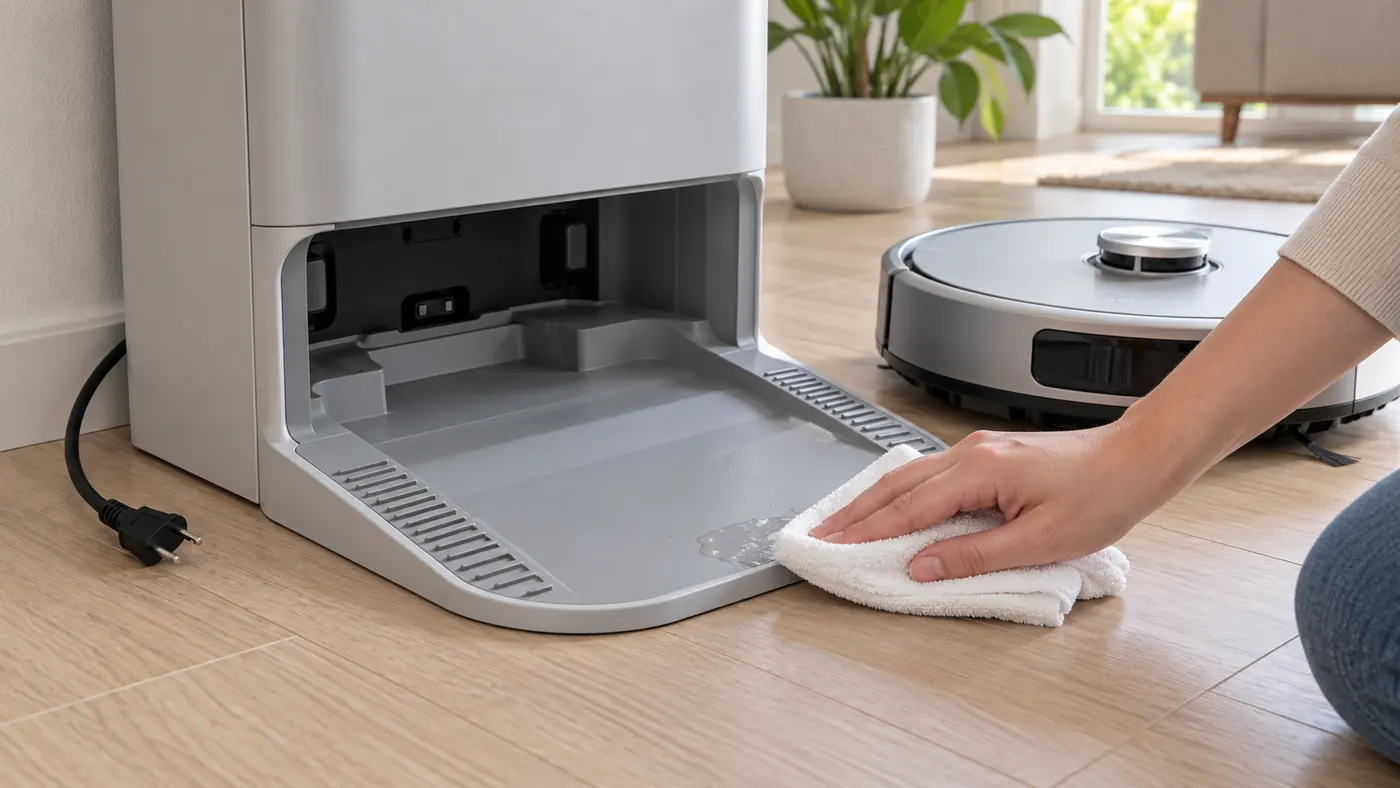
4. Dry the tray and inspect the wheels
For a T20 that finds the station but cannot enter, Ecovacs recommends powering off the robot and wiping the driving wheels with a dry cloth. Its guidance also says to dry the charging tray and surrounding puddles. Unplug the station before accessible tray maintenance and follow the model’s handling instructions.
Keep cleaning products out of the robot and station. Ecovacs cautions against other cleaning solutions and says its own product should be used according to the bottle instructions. After care, reconnect the station, restore the robot normally and repeat the same nearby docking test.
Do not repeatedly send the robot through a puddle to see whether it improves. If water returns to the sink or floor, investigate that symptom separately with the T20 dirty-water guide. Recurring water accumulation needs attention before further docking tests.
5. Check that mop plates are seated
Ecovacs includes incorrectly installed mopping pad plates in both its return and entry checks. Follow the installation instructions and confirm the plates click into place. Look for a recent pad change or maintenance step that coincides with the failed docking.
If a plate cannot seat normally, do not force it or use repeated docking attempts as a test. Check the exact replacement fit in the T20 OMNI parts guide. A problem beginning after a replacement is useful context, but it does not alone identify a faulty internal part.
6. Separate station activity from a failed return
Ecovacs notes that the app’s Return to Station button is unavailable while the robot is cleaning its mop pads. Wait for that task to finish before trying the command again. It also recommends beginning cleaning from the station.
For your next comparison, start a short task there and keep the base in place. Watch the final return. If docking succeeds but there is no charging indication, continue with the T20 charging guide. Rebuilding a map does not fix every charging symptom.
When to contact support
Contact Ecovacs if the robot still cannot enter from directly in front after the accessible checks. Send the docking video, exact alert and whether the problem follows a station move or consumable change. Do not open the station or diagnose a wheel motor from a failed approach alone.
FAQ
Should I move the station?
First compare with its original position and a clear, flat approach, as Ecovacs recommends.
Does finding the base prove docking is working?
No. Observe whether the robot enters and then recognizes charging.
Should I delete the map first?
Complete the nearby return test and access checks first. Keep screenshots before changing a saved map.
See the Ecovacs hub and T20 maintenance schedule.
Official sources: Ecovacs return-to-station checks and station-entry troubleshooting.
If your T20 docks correctly but dust collection fails, continue with the T20 OMNI auto-empty checks.
For plates that stay stationary during floor mopping, use the T20 mop-rotation guide to compare the mode and plate installation.