
Begin with the quick checks. Stop if a step requires tools or experience you do not have.
If your Ecovacs T20 OMNI scheduled cleaning is not working, first check whether the task never started or started and stopped with an alert. Those two cases need different evidence. Keep the saved schedule and the cleaning record from the same day.
Begin by opening the correct robot’s current schedule in ECOVACS HOME. Review the time, selected day and task details that your app displays. Then compare one supervised scheduled attempt with an ordinary manual task, without changing several settings at once.
Match the result to the next check
| What you observe | Check next |
|---|---|
| No task appears at the expected time | Review the saved schedule and selected day |
| Task starts, then ends with a warning | Follow the exact warning |
| App cannot refresh the device | Check connection before editing |
| Manual task works but scheduled attempt does not | Record one controlled schedule comparison |
| Task runs at an unexpected time | Compare saved time with the observed local time |
| Only one room remains untouched | Check task selection and completed coverage |
1. Open the manufacturer’s schedule controls
Ecovacs’ T20 scheduled-cleaning instructions identify Smart Cleaning > Scheduled Cleaning as the ECOVACS HOME route for adding or deleting a schedule. Use the current controls for the original T20 OMNI rather than instructions for another model.
Take a screenshot of the existing entry before editing it. Check the intended date or repeat day against today’s actual day. A weekday-only entry and a daily entry can look similar at a glance while producing different expectations.
Review the selected cleaning task wherever those details are shown. If you expect the whole home but the entry selects an area, keep that distinction in the record. Do not rebuild the map before confirming what the scheduled task was meant to do.
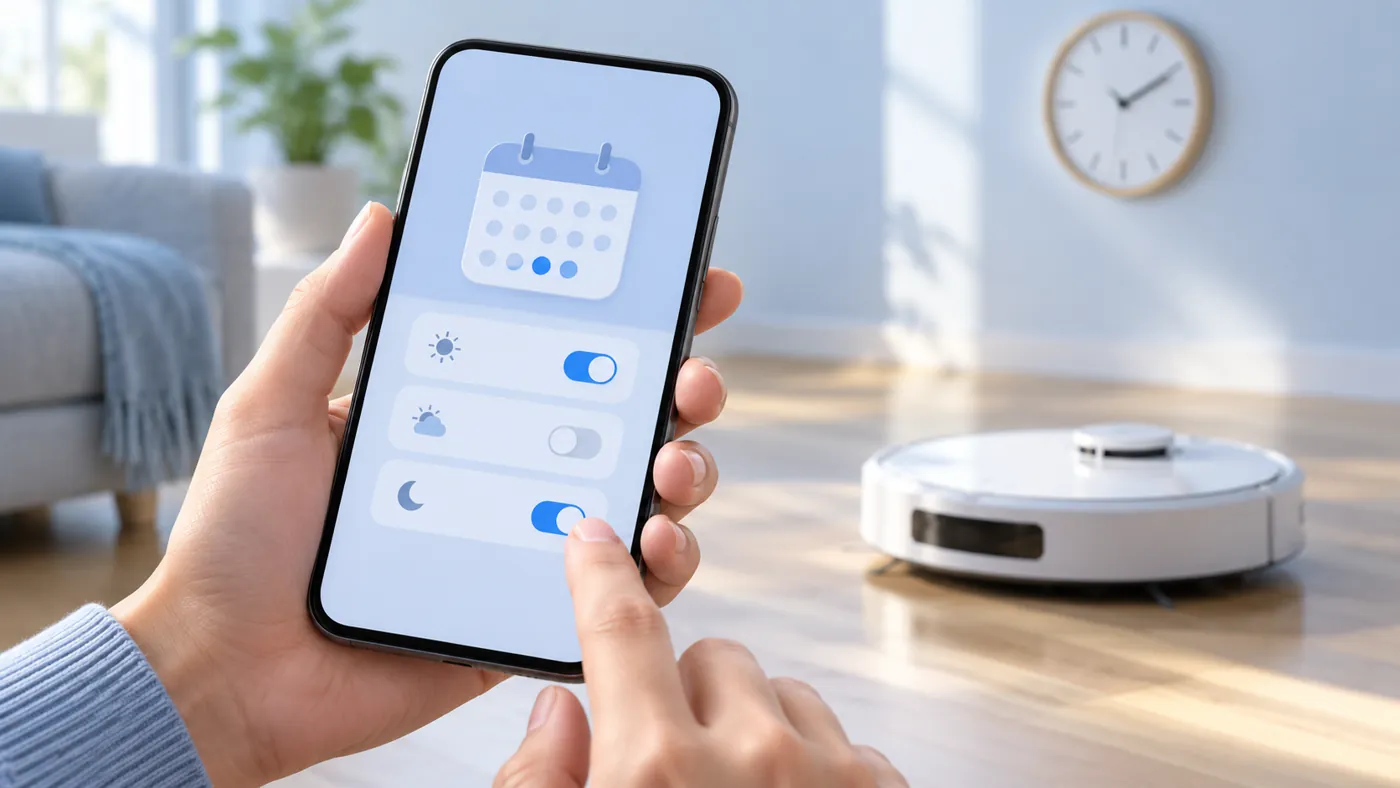
2. Confirm the entry you edited was saved
Follow the app’s save or confirmation control, then return to the schedule list and reopen the entry. Compare the displayed values with what you intended. This checks the saved result rather than relying on a screen you left halfway through editing.
If your app exposes an enabled state for the entry, record it too. App versions can present settings differently, so do not invent a missing switch from an old screenshot. Use the controls that are actually available to your device.
For a task that appears at the wrong time, record the schedule time and the observed local time. If the app offers time-related settings, review them with its current guidance. Do not assume a specific time-zone or daylight-saving fault without that comparison.
3. Use one supervised scheduled trial
Choose a time when you can observe the robot and the floor is ready for the selected task. Keep the station accessible and note the current charging, connection and alert status shown in the app. Do not start another task as the scheduled time approaches.
Watch what happens at the saved time. Record whether the robot begins, whether a task appears in the history and whether a warning interrupts it. Preserve the exact message rather than writing only that the schedule failed.
If you temporarily add a test entry, give it a clear purpose in your notes and remove it after the comparison. Keep the normal schedule screenshot so you can restore your intended routine. Several overlapping test entries make later unexpected starts harder to explain.
4. Compare with a normal manual task
At a separate suitable time, try the same ordinary task manually through the app. Record the result without altering the map or route. If both attempts stop with the same alert, follow that alert before focusing on the schedule.
If the robot cannot charge as expected, use the charging guide. If the app cannot refresh or reach the robot, use the Wi-Fi checks. An offline display alone does not prove why a scheduled task was missed.
If the schedule did start but a selected room was left untouched after completion, use the missed-room guide. If the task returned to charge with work pending, use the continuation checks.
5. Keep unexpected starts separate
If cleaning begins when you did not expect it, compare every saved schedule with the observed start time. The unexpected-start guide covers that different symptom.
A physical button that does not respond is also a separate input issue. Use the button guide rather than treating that observation as evidence about a saved schedule.
When to contact support
Contact Ecovacs if the saved entry is correct but a supervised scheduled attempt still does not start, while the matching manual task works. Send both results, the schedule screenshot, local date and time, task history, any alert, and app and firmware versions.
The manufacturer’s short setup page does not establish every possible scheduling failure. Ask support to assess the recorded pattern before deleting the robot, resetting it or assuming a software defect. If they request a change, repeat the same comparison afterward.
Frequently asked questions
Does no cleaning record prove the schedule was deleted?
No. Check the current saved entry and keep the observed result separately.
Should I change several schedules at once?
Use one clear supervised comparison so you can identify which entry produced the result.
Is an interrupted task the same as no scheduled start?
No. A task that starts and ends with a warning needs that warning’s checks.
Find related guides in the Ecovacs hub.