Begin with the quick checks. Stop if a step requires tools or experience you do not have.
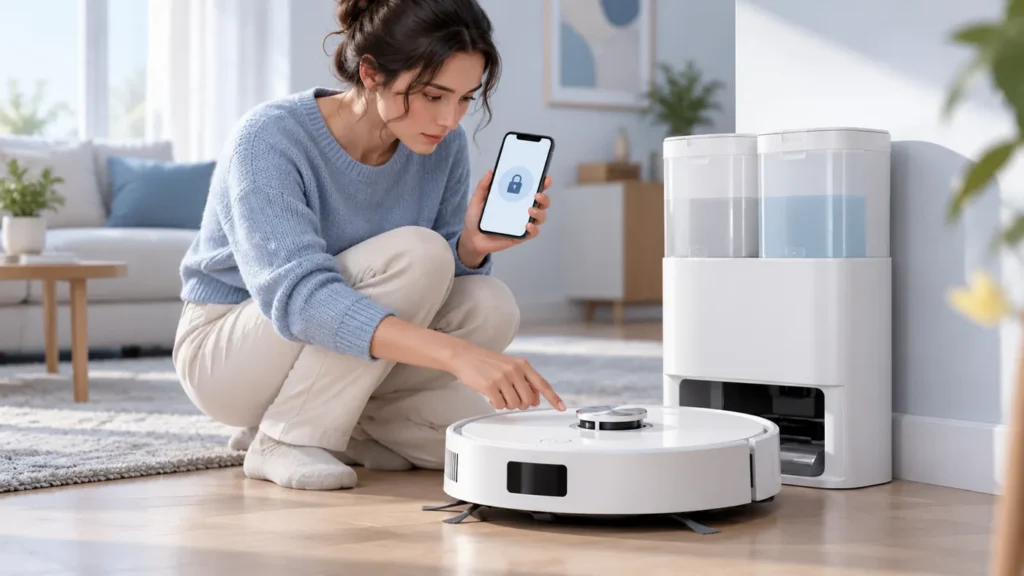
If your Ecovacs T20 OMNI buttons are not working, check Child Lock before assuming the controls have failed. The useful first distinction is whether a button produces no response, or whether the robot acknowledges it but cannot perform the requested task.
Write down which control you tried: the robot’s start/pause button or a station button. Include the light state, current task and any app alert. That record helps separate a deliberate lock from a connection, charging or task problem.
Match the result to the next check
| What you observe | Check next |
|---|---|
| Robot and station buttons seem locked; button light is off | Review Child Lock in the connected app |
| App command works but physical control does not | Compare the lock setting and the affected button |
| Station cannot control the robot and app reports disconnection | Use station connection checks |
| Button is acknowledged but a warning stops cleaning | Follow the warning rather than pressing harder |
| App cannot reach the robot either | Check connection status |
| Visible control damage or recent liquid exposure | Stop repeated trials and contact support |
1. Check the documented Child Lock setting
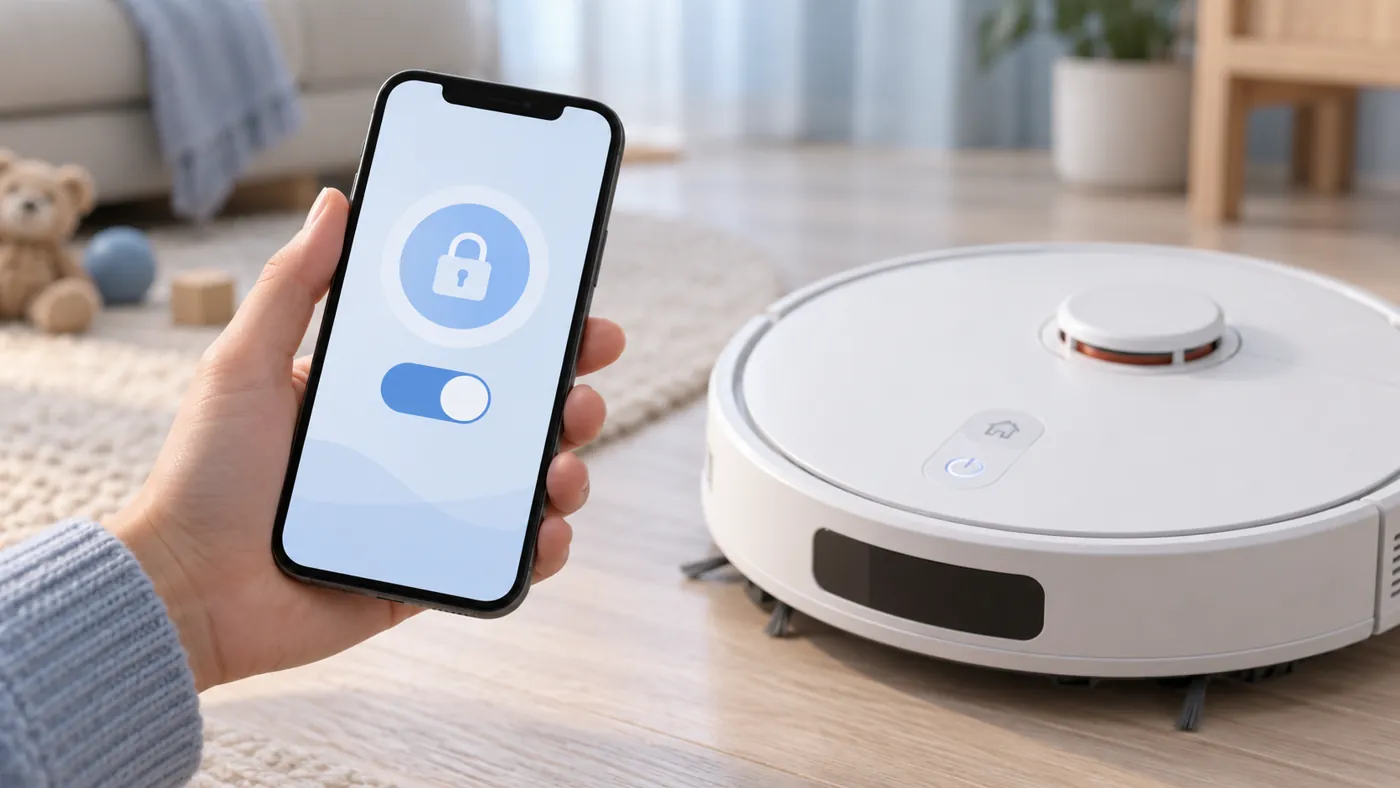
Ecovacs’ T20 Child Lock instructions direct you to Smart Cleaning > Settings > Child Lock in ECOVACS HOME when the robot is connected. The manufacturer says an enabled lock disables the station buttons and the robot’s start/pause buttons, with the button light off.
View the setting for the correct robot if your account contains more than one device. Save a screenshot before changing it. A familiar device name is not enough if you recently added or renamed another robot.
If you want to compare the controls with the lock disabled, do so while supervising the robot and keeping children away. Restore the setting you normally use after the comparison. The purpose is to explain the response, not leave a protective household preference changed unintentionally.
2. Make one clear comparison
Choose a time when the robot is available for an ordinary permitted task. Use the normal button action described in the original T20 instructions and allow time for a response. Avoid uncertain long presses or several buttons at once.
Record three separate observations: whether there is a light or sound response, whether a task begins, and whether an alert then stops it. A command accepted before a warning appears is different from a control that produces no acknowledgment.
Where appropriate, compare the same task through the app. If the app task works while the physical control remains unresponsive with Child Lock off, retain that result for support. It narrows the report without identifying a failed switch or circuit.
3. Check connection before interpreting app results
If the app is offline or cannot refresh the device, its displayed state may not provide a useful live comparison. Follow the T20 Wi-Fi guide for that connection problem, then check the current setting again.
If the app specifically reports the robot disconnected from its station, use the station connection guide. Note whether the robot’s own control behaves differently from the station control.
Do not repeatedly pair the robot or delete it from your account merely because one button does not respond. First keep the results from the physical control, app and station separate so you can choose the relevant procedure.
4. Follow a task warning when there is acknowledgment
If the control produces a response but cleaning is blocked by an alert, save its exact wording. Pressing the button more firmly will not resolve a warning that needs another check.
For a charging concern, use the charging guide. For an explicit mop-plate installation warning, use the mop-plate guide. For a sensor warning, choose the matching sensor instructions rather than grouping everything under broken buttons.
A voice request is another separate input route. If ordinary controls work but voice commands fail, use the YIKO checks. Keep the wording of the request and the response in your notes.
5. Stop when the remaining issue needs support
If a physical control remains unresponsive after the relevant setting and connection checks, contact Ecovacs. Send the affected button, lock screenshot, light state, app task result and any alert. Mention whether the issue affects every control or only one.
Include recent impact or liquid exposure if relevant. Do not pry up the button, spray cleaner into its edges or open the station to investigate a general response complaint. Photograph visible damage instead.
If support asks for a restart, use the normal model procedure and repeat the same comparison afterward. Do not interrupt active firmware installation or substitute a factory reset without an applicable instruction.
Frequently asked questions
Can Child Lock make the button light go off?
Yes. That behavior is documented in the T20 Child Lock instructions.
Does an app task working prove the physical button is broken?
No. Check the lock setting and preserve the comparison for diagnosis.
Should I use a reset-button combination from another model?
No. Use instructions for the original T20 OMNI and ask support if the next action is unclear.
See the Ecovacs troubleshooting hub for related guides.