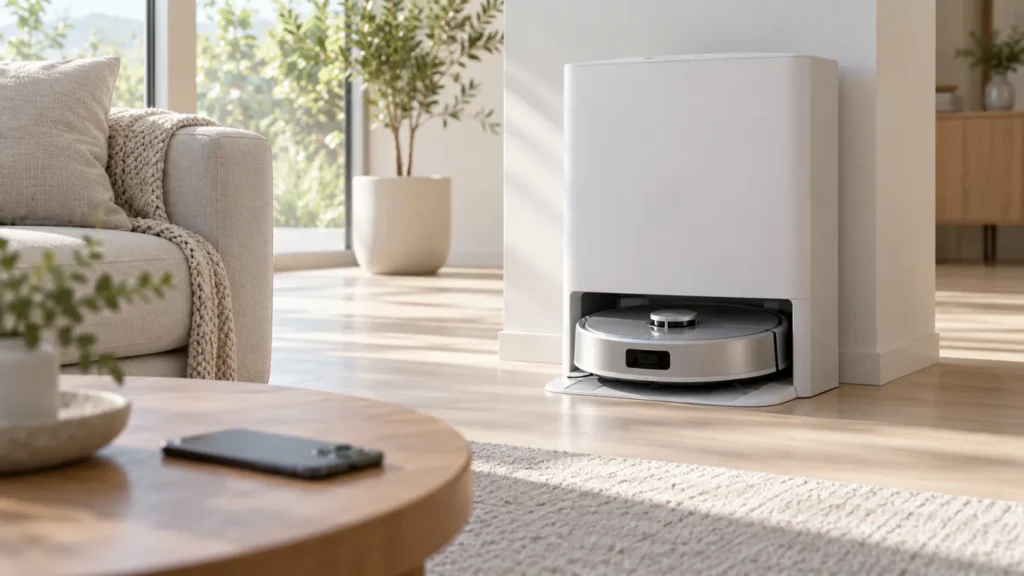
Begin with the quick checks. Stop if a step requires tools or experience you do not have.
If your Ecovacs T20 OMNI firmware update fails, note whether it refuses to start, times out during download or reports a station connection problem. Repeatedly tapping Update without changing the failed condition is unlikely to tell you much. Start with the charging state, battery level and current app connection.
Save the exact message and the installed firmware version before another attempt. If the app currently says an update is in progress, leave the robot and station powered and follow the app’s instructions. The preparation checks below are for before an update or after the app has confirmed a failed attempt.
Match the failure to a preparation check
| What happens | Check next |
|---|---|
| Update will not begin | Recognized charging and battery level |
| Download ends with a timeout | Network signal at the station |
| Station controls do not respond | Child Lock and robot–station connection |
| Robot appears Offline | Restore the app connection |
| Repeated failure with the same setup | Record details for Ecovacs support |
1. Confirm the charging requirements
Ecovacs’ firmware upgrade instructions require the robot to be on the station and charging, with at least 50% battery. It recommends charging for three hours before upgrading. Check the displayed charge as well as the charging indication; time spent near the station alone is not enough.
If charging is not recognized, use the T20 charging guide before attempting firmware again. If the robot stops at the entrance rather than entering fully, follow the docking checks. Keep that physical problem separate from the update message.
Record the battery level immediately before the attempt. A screenshot taken much earlier can make the comparison misleading, especially if the robot cleaned between the screenshot and the update request.
2. Check the connection where the robot is docked
In its failed-update guidance, Ecovacs says a weak network signal can cause a download timeout. Check the connection at the robot and station location rather than assuming that good reception elsewhere in the house applies there.
If ECOVACS HOME cannot show current robot status, use the T20 Wi-Fi troubleshooting guide. A phone displaying a cached battery value is not a reliable indication that the robot is online. Confirm the status is current before trying to interpret a stalled download.
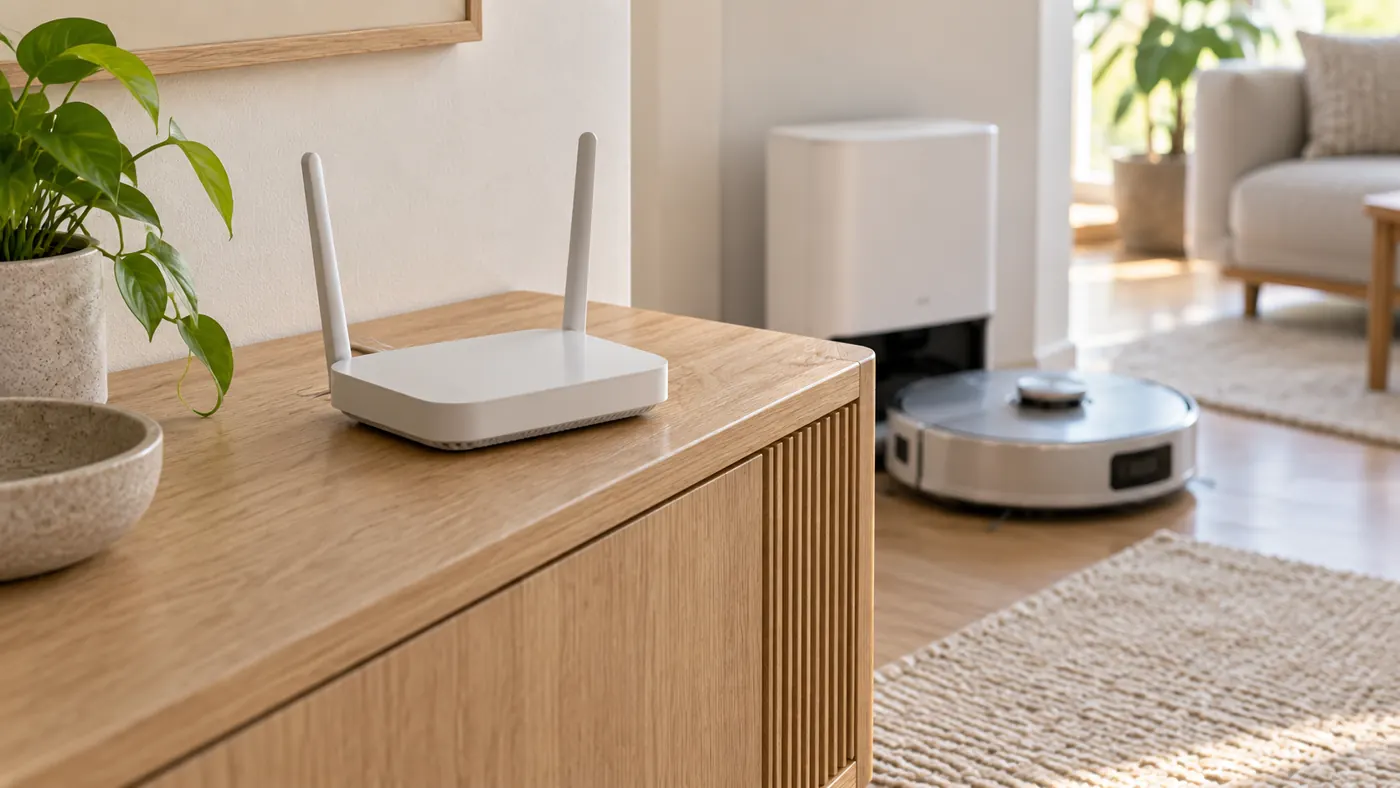
Improve the network setup before starting another update, then leave it stable during the attempt. If relocation is needed, plan it while no update is active and review the docking setup afterward. Do not move the robot away from recognized charging halfway through installation.
3. Check whether the station can control the robot
Ecovacs includes a station start/pause response check among its failed-update steps and recommends restoring robot–station pairing if that connection is missing. Use the station-disconnection guide for the documented sequence. Perform this check outside an active firmware installation.
Before interpreting an unresponsive button, review Child Lock. Ecovacs says it locks station buttons and the robot’s start/pause controls. A locked button therefore needs a different interpretation from a disconnected station.
Keep the robot, station and app observations together. Does the app report disconnection? Is charging recognized? Does the button respond when local controls are available? One symptom by itself does not establish that the station hardware failed.
4. Use the app’s normal update route
The documented menu is Smart Cleaning > Settings > About DEEBOT > Update DEEBOT. Confirm the selected device is your T20 OMNI, then follow the current app prompts. Ecovacs also notes that enabled automatic updates install the latest version.
Menu presentation may change with the app version. If you cannot find the update item, use current Ecovacs guidance rather than a hidden service menu or an unofficial firmware file. Keep a note of the app version and what the screen shows.
After a confirmed failure, make one prepared retry with charging, battery and connectivity checked. Record whether the message changes. Avoid stacking a router reset, factory reset and station repair into the same experiment, because that removes the evidence needed to understand the original failure.
5. Confirm the result
When the app reports completion, reopen the device information and compare the installed version with your earlier record. A closed progress screen alone is not the same as a completion message. If you cannot tell whether the update ended, keep the displayed status and ask Ecovacs before interrupting it.
Once normal operation is available, check an ordinary short task. If a separate station or cleaning warning appears, follow that warning’s procedure rather than assuming every later symptom was caused by the update.
Frequently asked questions
Can I update with the robot parked beside the dock?
Follow the documented charging requirement. Confirm it is seated and actually charging before starting.
Should I factory-reset after one failed update?
Start with the preparation checks and exact message. Save the firmware and app versions before changing the setup.
When should I contact Ecovacs?
Contact support for repeat failures despite the documented conditions, or an update state that remains unclear. Send the message, battery level, versions and connection observations.
Find related guides in the Ecovacs troubleshooting hub.