Begin with the quick checks. Stop if a step requires tools or experience you do not have.
If an Ecovacs T20 OMNI driving wheel is stuck, first check whether the robot is physically hung up on something or whether accessible debris is caught at the wheel. Record any app warning and the location. A robot balanced on a threshold is a different observation from one that repeatedly stops on a clear floor.
Stop the task and power off before inspecting the underside. Begin with the manufacturer’s external wheel checks, keeping the robot supported and avoiding force. You do not need to remove a wheel module to look for visible hair, thread or dirt.
Match the observation to the check
| What you observe | Check next |
|---|---|
| Wheel area contains accessible hair or thread | Remove entangling debris with power off |
| Rubber tread is visibly dirty | Follow exterior tread cleaning |
| New robot still has protective strips | Check the documented setup step |
| Robot is hung up on a mat or threshold | Remove the visible trap safely |
| Movement remains abnormal on clear level floor | Record a short comparison for support |
| Alert names a sensor or brush | Use that component’s matching guide |
1. Check the original setup and location
Ecovacs’ stuck driving-wheel instructions begin by checking that the anti-collision protection strips have been removed. They then direct you to switch the robot off, gently place it upside down, and press and rotate the driving wheels to remove entangled debris.
For a newly unpacked robot, compare the remaining packaging with the original setup instructions. Do not mistake a permanent bumper or trim piece for a shipping strip. If you are unsure what is removable, confirm it in the T20 documentation.
Photograph the place where movement stopped. If the body is perched on a raised object, use the getting-stuck guide as well. Repeatedly restarting at the same trap does not show how the robot moves on an ordinary clear surface.
2. Inspect the driving wheels with power off
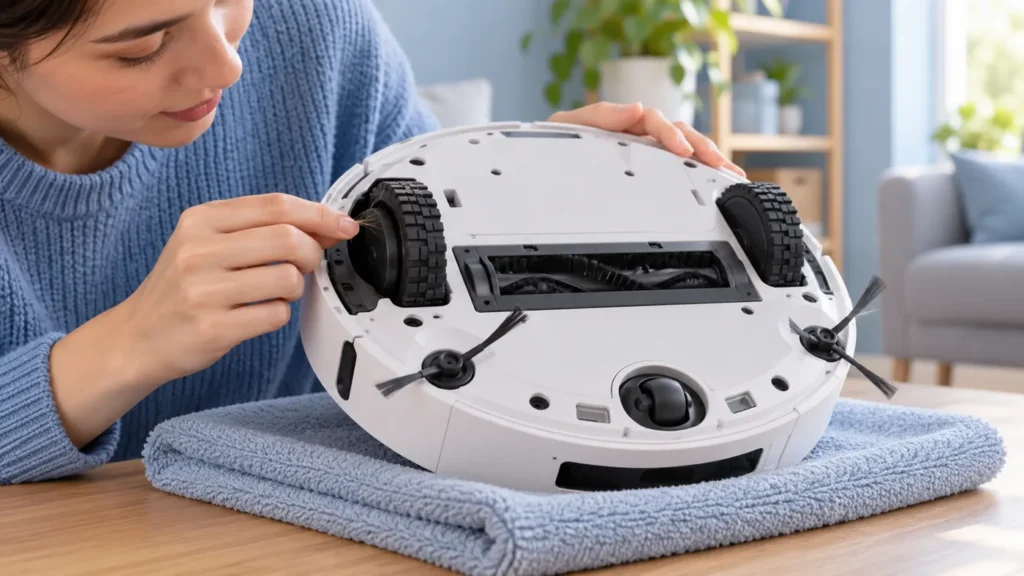
Support the robot while turning it over and protect its upper housing from hard contact. Identify the driving wheels from the original model layout. The images here are illustrative maintenance scenes rather than an exact underside diagram.
Look for loose thread, hair and fragments around the accessible wheel edges. Work only where you can see what you are removing. Do not push a sharp tool into a gap or pull hard on a strand that disappears into the robot.
Use the gentle press-and-rotate movement described by Ecovacs to expose accessible debris. If a wheel will not move without substantial force, stop and tell support what you observed. The check is not an instruction to free a seized assembly by levering it.
3. Clean dirty tread separately
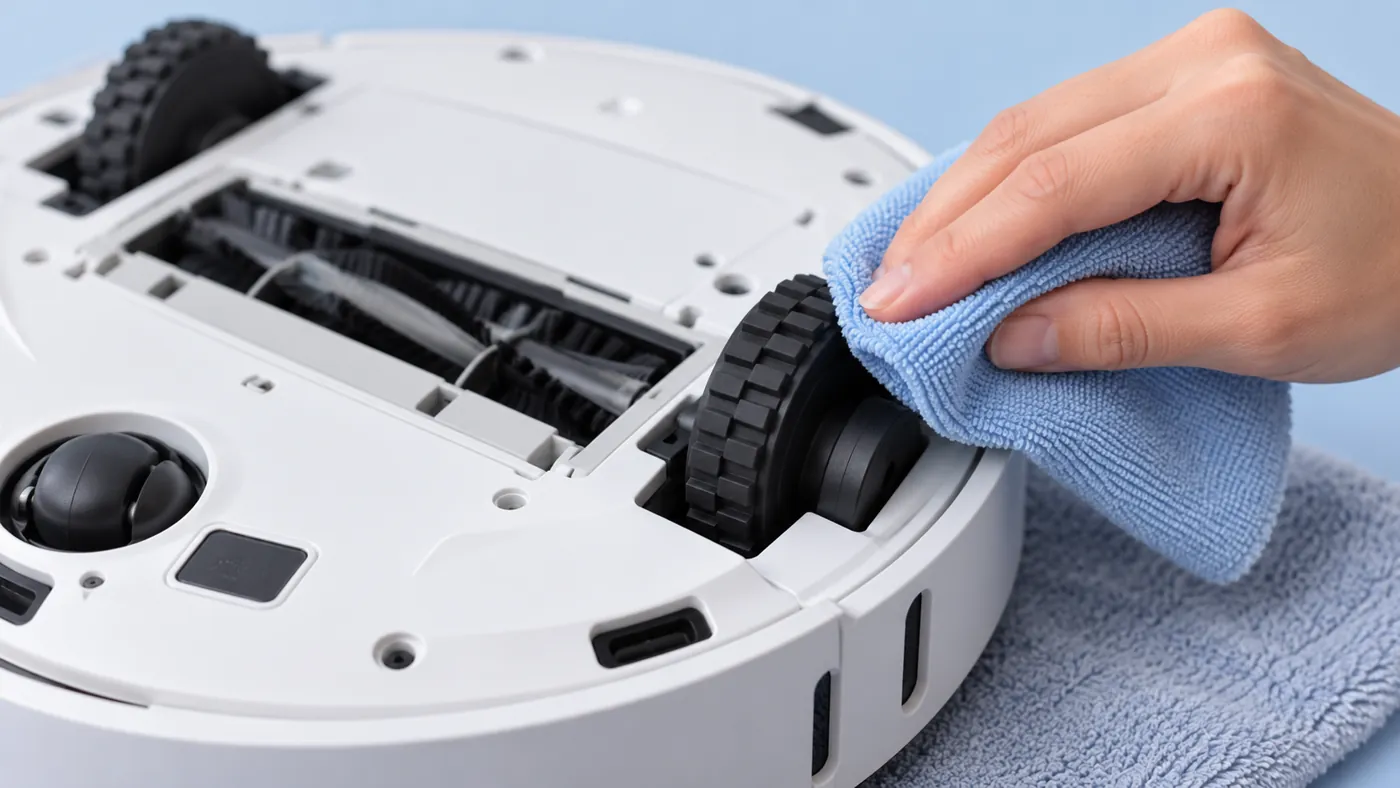
In its driving-wheel cleaning guidance, Ecovacs describes pressing and rotating the wheels to remove entangling material, then wiping their surfaces with a semi-dry cloth while the robot is off and upside down.
Use a well-wrung soft cloth on the accessible tread rather than spraying liquid into the wheel housing. Inspect the cloth as you work so removed dirt is not simply transferred to the next section.
Keep the distinction between dirt on rubber and material caught around a moving part. A cleaner tread surface does not establish that an internal obstruction is gone. Do not add oil or another lubricant as an improvised treatment for uncertain resistance.
4. Compare movement on a clear floor
Return the robot upright after the external inspection and cleaning. Make sure the exterior surfaces you wiped are dry before normal use. Choose a clear level floor away from exposed drops and start a normal permitted task.
Observe without pushing the robot along or lifting a side to help it move. Record whether it travels normally, turns repeatedly or stops with the same alert. A short video of that behavior is more useful than an unsupported claim that one wheel motor has failed.
Keep the comparison simple. Do not change the map and several app settings at the same time. If the robot works on the clear floor but stops at the original obstacle, save both results and the obstacle photo.
5. Use the alert to choose the next guide
If the robot moves normally but cannot climb into the station, use the T20 docking guide. Record where the attempt fails instead of grouping every docking problem under a wheel fault.
If the app identifies dusty anti-drop sensors, follow the sensor guide. For a brush warning or visible brush entanglement, use the main-brush checks. Keep the wording of each alert intact.
A room left untouched after completion needs the missed-room guide. Wheel cleaning alone cannot establish whether that room was selected or physically accessible.
When to contact Ecovacs
Contact support if a wheel remains difficult to move during the gentle check, visible damage is present or abnormal movement continues on a clear floor. Send underside photos, the exact alert and a short clip of the normal task attempt.
State whether you removed debris and whether that changed the result. Ask support to confirm the service route and correct part if replacement is proposed. Do not choose a wheel module from appearance alone or dismantle it just to investigate a general movement complaint.
Frequently asked questions
Should I force a stuck driving wheel to turn?
No. Use the gentle documented check and stop if substantial force would be required.
Can dirty tread and entanglement occur together?
Record and address each visible condition separately, then compare normal movement.
Does turning in place prove a failed wheel motor?
No. Save the behavior and alerts for diagnosis instead of assuming a particular component failed.
Find related guides in the Ecovacs hub.